Looking Up Parts & Add to Lookup
What is Part Inquiry?
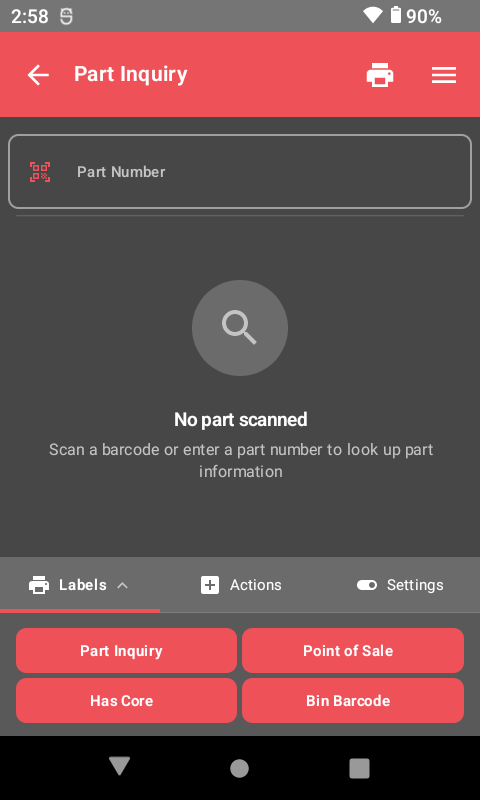
Part Inquiry lets you scan any part barcode and instantly see all the information about it — bin location, stock levels, pricing, description, and more. You can also print new barcode labels directly from the scanner without walking back to a computer.
Part Inquiry is useful throughout your day:
- Found a part out of place? Scan it to see where it belongs.
- Customer has an old part number? Scan it to find the current number.
- Label missing or damaged? Print a new one on the spot.
- Need to check stock? Scan and see quantity on hand instantly.
Looking Up a Part
- Select Part Inquiry from the scanner main menu.
- Scan the part barcode — this can be a 1D barcode, 2D barcode, or QR code on the part, on the shelf, or on any label.
- The part information displays instantly on screen.
ScanIt Parts reads every barcode format used in the industry — 1D (UPC, Code 128, Code 39), 2D (Data Matrix, PDF417), and QR codes. It works with all OEM labels across automotive (GM, Ford, Toyota, Jaguar, Land Rover, and all makes), powersports (Yamaha, Kawasaki, Harley Davidson, Suzuki, Polaris, Sea-Doo, Can-Am, Indian, and more), and heavy-duty (Caterpillar, Detroit Diesel, International, Cummins).
You can also type a part number manually if the barcode is damaged or unavailable.
Reading the Information Screen
When you scan a part, the inquiry screen shows:
- Part Number — The current part number (may differ from what was scanned if the part has been superseded).
- Description — Part description from your DMS.
- Bin Location — Where the part is stored (bin number or container name).
- On Hand — Current quantity in stock.
- On Order — Quantity currently on order from vendor.
- Committed — Quantity reserved for open repair orders or customer orders.
- Available — On Hand minus Committed. This is what is actually available to sell.
- List Price — Manufacturer's suggested retail price.
- Cost — Your dealership's cost for the part.
- Source — Stocking status (stock, non-stock, special order, etc.).
Superseded Part Numbers
Manufacturers frequently update part numbers. When you scan an old part number, the system automatically recognizes it as a superseded number and displays the current part number with all associated information. This is especially useful when customers bring in old packaging or reference guides with outdated numbers.
Tip: Scan the old barcode and the system finds the current part. You do not need to know the new number — the scanner handles the conversion automatically.
Printing Labels
From Part Inquiry, you can print several label types directly from the scanner:
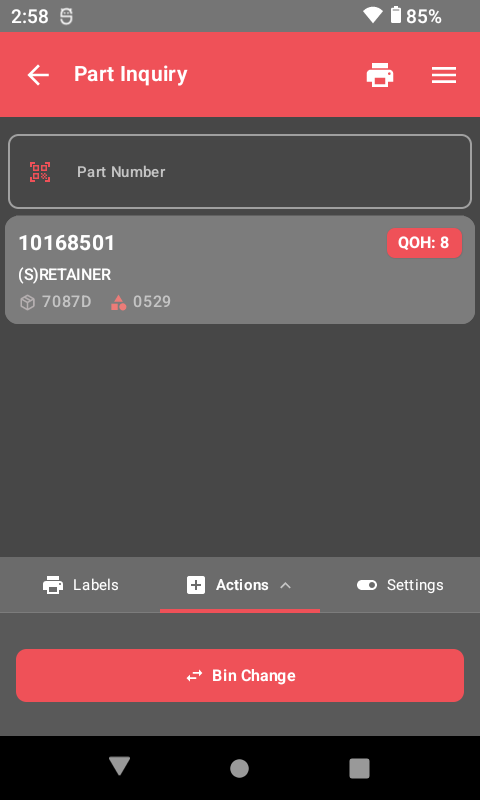
- Part # Barcode — Label with the part number barcode, bin location, and description. Use this to replace missing or damaged shelf labels.
- Point of Sale — Label with a large price display, barcode, part number, and description. Use for counter sales or customer-facing displays.
- Bin Barcode — Label showing just the bin location with a barcode. Use for new bin locations or replacing damaged bin labels.
How to Print
- Scan the part in Part Inquiry.
- Select the Labels tab or button.
- Choose the label type you want to print.
- The label prints from your scanner's built-in printer.
Add to Lookup (Barcode Cross-Reference)
Not every barcode matches the part number in your DMS. Manufacturer UPC codes, tire barcodes, aftermarket packaging, and retail accessories often use different numbering systems. Add to Lookup lets you create a permanent cross-reference between any scanned barcode and the part number stored in your dealer management system.
How It Works
- You scan a barcode in any scanning function (Receiving, Part Inquiry, Perpetual, Bin Changes, Returns, or Other Items).
- The system checks its lookup database. If the barcode is not recognized, the Add to Lookup dialog appears: "The UPC does not exist. Please enter the manufacturer part number."
- Scan or manually type the dealer part number — the number your DMS uses for this item (up to 30 characters, automatically uppercased).
- Press Enter or tap Save. The system confirms "Cross over added!" and the mapping is saved permanently.
- From now on, scanning that barcode anywhere in ScanIt Parts will automatically return the correct part information from your DMS.
You only need to add a lookup once. After that, every user at your dealership benefits from the mapping. The cross-reference works across all scanning functions — add it during Receiving and it works in Part Inquiry, Cycle Counting, and everywhere else.
Common Add to Lookup Examples
- AC-Delco UPC — Scan the UPC barcode on the AC-Delco box, enter the GM dealer part number from your DMS.
- Motorcraft UPC — Scan the UPC on the Motorcraft package, enter the Ford dealer part number.
- Tire barcode — Scan the barcode on the tire sidewall or label, enter your DMS tire part number.
- Accessories — Scan the UPC on a hat, shirt, or branded item, enter the accessory part number.
- Aftermarket parts — Scan the third-party manufacturer barcode, enter your dealership's part number.
- Case/pallet barcode — Scan the barcode on bulk packaging, enter the individual part number inside.
Add to Lookup works for anything you store in your DMS. If it has a barcode and a DMS part number, you can map it — parts, tires, accessories, merchandise, golf clubs, gift items, or any other product your dealership inventories.
Important Details
- Dealer-specific: Each dealership maintains its own lookup database. Your cross-references do not affect other dealers.
- No duplicates: If a barcode has already been mapped, scanning it goes straight to the part information — no prompt appears.
- No identical matches: The barcode and part number cannot be the same value.
- Tracked in reports: Add to Lookup activity appears as a scan type in the Enterprise Dashboard, so managers can see how many new cross-references are being created.
Common Use Cases
Finding Where a Part Belongs
You find a part sitting on a counter or out of place. Scan the barcode, Part Inquiry shows the bin location, and you walk the part to the correct bin.
Customer Has Old Part Number
A customer calls with a part number from an old receipt. Scan or type the old number, the system shows the current number, and you can check availability (on hand, on order) and give the customer accurate information.
Replacing Damaged Labels
You notice a shelf label that is faded or torn. Scan the part (or type the part number), select print label, peel off the old label, and apply the new one.
Quick Stock Check on the Floor
A technician asks if you have a specific part. Scan the part number they give you, see quantity on hand, on order, and committed, and give them an immediate answer without going back to the counter.
Related Resources
Ready to See ScanIt Parts in Action?
Schedule a personalized demo and see how ScanIt Parts can transform your parts department.
Request a Demo